Real Voice in WhatsApp with OpenClaw: from zero to production
If you've been building WhatsApp bots for a while, you know the pain: Meta's official API gives you limited access, Baileys works until it doesn't, and audio support has always been the ugly cousin at the party. OpenClaw changed that. According to the comparison published on zenvanriel.com, OpenClaw's WhatsApp channel not only supports inbound and outbound voice notes, but does so on par with Telegram, which was historically the undisputed king of audio-capable bot experiences. This tutorial explains exactly how to set it up, no detours.
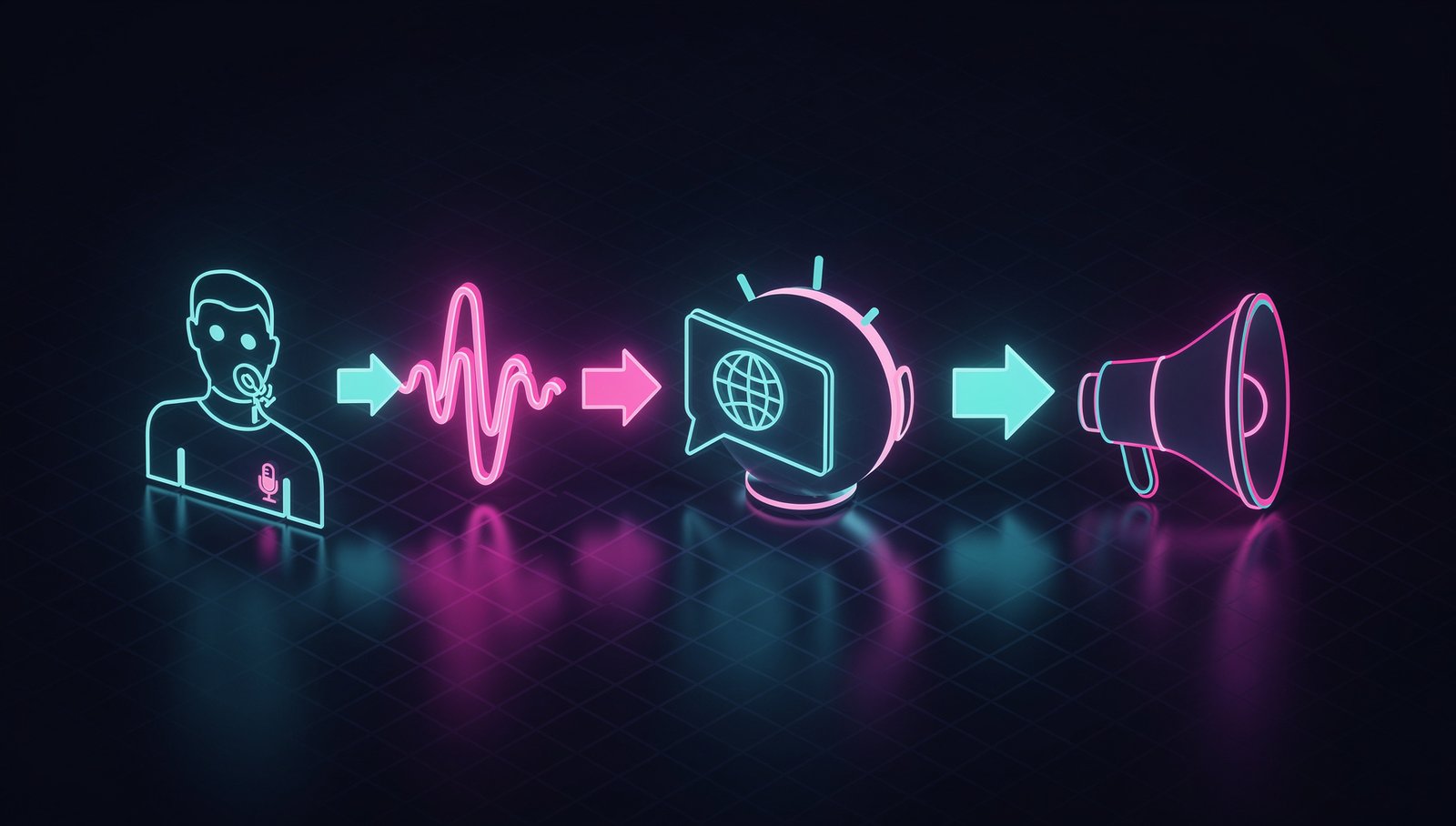
What is OpenClaw and why does it matter in 2026
OpenClaw is a unified channel framework for conversational bots. The idea is simple: define your bot logic once and connect it to multiple channels (Telegram, WhatsApp, Signal, Discord) with standardized adapters. What's relevant here is that its WhatsApp adapter does not use Telegram's official bot API approach — instead, it works on top of Meta's WhatsApp Cloud API with proprietary extensions to handle audio objects natively.
This means you can:
- Receive a user's voice note as a processable audio object
- Transcribe, analyze, or route it in your pipeline
- Reply with another voice note (TTS or pre-recorded file)
- All within the same conversation thread, no weird hacks
Prerequisites
Before touching code, make sure you have this in order:
- Meta for Developers account with a configured app and the WhatsApp product enabled
- Verified phone number on WhatsApp Business Platform (not a personal number — a dedicated one)
- OpenClaw >= 0.9.4 — earlier versions have the WhatsApp adapter without full voice support
- Node.js >= 20 or Python >= 3.11 depending on which SDK you use
- Public webhook — you can use ngrok in development, but in production you need real HTTPS
- TTS provider credentials if you're generating voice responses (ElevenLabs, Azure Speech, Google TTS — your call)
Step 1: Install OpenClaw and the WhatsApp adapter
# With npm
npm install @openclaw/core @openclaw/channel-whatsapp

# Or with pip if you prefer Python
pip install openclaw openclaw-channel-whatsapp
Verify the adapter version:
npm list @openclaw/channel-whatsapp
# Should show >= 0.9.4
Step 2: Configure the WhatsApp channel
Create your main configuration file. In JavaScript:
// bot.config.js
import { OpenClaw } from '@openclaw/core';
import { WhatsAppChannel } from '@openclaw/channel-whatsapp';

const bot = new OpenClaw({
  channels: [
    new WhatsAppChannel({
      phoneNumberId: process.env.WA_PHONE_NUMBER_ID,
      accessToken: process.env.WA_ACCESS_TOKEN,
      verifyToken: process.env.WA_VERIFY_TOKEN,
      voiceSupport: {
        enabled: true,
        inbound: true,   // receive voice notes
        outbound: true,  // send voice notes
        format: 'ogg',   // WhatsApp uses ogg/opus internally
      },
    }),
  ],
});

export default bot;
Production warning: Meta's accessToken expires. Use System User Tokens with whatsapp_business_messaging and whatsapp_business_management permissions. Personal user tokens will burn you in production when you least expect it.
Step 3: Register your webhook in Meta
In the Meta for Developers dashboard:
- Go to your app > WhatsApp > Configuration
- Under "Webhook", enter your public URL:
https://yourdomain.com/webhook/whatsapp - The verify token must match
WA_VERIFY_TOKENin your.env - Subscribe to fields:
messages,message_reactions(optional)
OpenClaw exposes the endpoint automatically when you start the server:
// server.js
import bot from './bot.config.js';

bot.start({ port: 3000 });
// Webhook available at: http://localhost:3000/webhook/whatsapp
Step 4: Handle incoming voice notes
Here's the good part. OpenClaw normalizes the audio object so you don't have to deal with Meta's raw format:
bot.on('voice', async (ctx) => {
  const { audioUrl, mimeType, duration } = ctx.message.voice;

  // audioUrl already has the download token resolved
  const audioBuffer = await fetch(audioUrl).then(r => r.arrayBuffer());

  // Example: transcribe with Whisper
  const transcript = await transcribeWithWhisper(audioBuffer);

  // Reply with text
  await ctx.reply(`I heard: "${transcript}"`);

  // Or reply with another voice note
  const responseAudio = await generateVoiceResponse(transcript);
  await ctx.replyVoice(responseAudio, { mimeType: 'audio/ogg' });
});
Important note: WhatsApp only accepts audio in OGG format with Opus codec for outbound voice notes. If your TTS generates MP3 or WAV, you need to convert before sending. Use ffmpeg in your pipeline:
import { execSync } from 'child_process';

function convertToOggOpus(inputPath, outputPath) {
  execSync(
    `ffmpeg -i ${inputPath} -c:a libopus -b:a 32k ${outputPath}`,
    { stdio: 'ignore' }
  );
}
Step 5: Voice responses with TTS
Full example with ElevenLabs:
import ElevenLabs from 'elevenlabs-node';

const eleven = new ElevenLabs({ apiKey: process.env.ELEVENLABS_KEY });

async function generateVoiceResponse(text) {
  const audioStream = await eleven.textToSpeechStream({
    voiceId: 'your_voice_id',
    text,
    modelId: 'eleven_multilingual_v2',
  });

  // Convert stream to buffer
  const chunks = [];
  for await (const chunk of audioStream) chunks.push(chunk);
  const mp3Buffer = Buffer.concat(chunks);

  // Convert to OGG Opus for WhatsApp
  // (here you'd use your ffmpeg function or a wrapper)
  return convertBufferToOggOpus(mp3Buffer);
}
Step 6: Test the full flow in development
# Terminal 1: start the bot
node server.js

# Terminal 2: expose the webhook with ngrok
ngrok http 3000

# Update the webhook URL in Meta with the ngrok URL
# Send a voice note from your WhatsApp to the test number
# Check the logs
Critical production warnings
- Meta rate limits: WhatsApp Cloud API has limits per phone number. If you send too many outbound voice notes in a short time, you get temporarily blocked. Implement a queue with BullMQ or similar.
- Audio file size: Meta rejects audio files larger than 16 MB. If your TTS generates long audio, split it.
- 24-hour window: You can only send messages (including voice) within 24 hours of the user's last message, unless you use approved templates.
- Don't use personal numbers in production: Use dedicated Business numbers. Personal ones can get banned without warning.
- Audio logging: Don't log full audio buffers. Only metadata. Your security team will thank you.
Conclusion
OpenClaw removed the excuse for anyone who said WhatsApp couldn't support voice bots like Telegram. Today in 2026, with the right adapter and proper configuration, you can have a bot that receives voice notes, processes them, and responds with generated audio — all within the same WhatsApp thread your users already use daily. The flow is clean, OpenClaw's documentation is decent, and the gotchas are well documented if you know where to look. No more excuses.