
Why This Matters If You Run a WhatsApp Bot
If you've been working with WhatsApp chatbots connected to a CRM for any length of time, you already know the pain: the bot captures a half-baked contact, it lands in your CRM with nothing but a phone number, no name, no stage, no useful data, and your sales team ends up chasing ghosts. SendPulse just solved that problem at the root with a feature many of us had been waiting for: required fields for automatic contact transfer from the chatbot to the CRM.
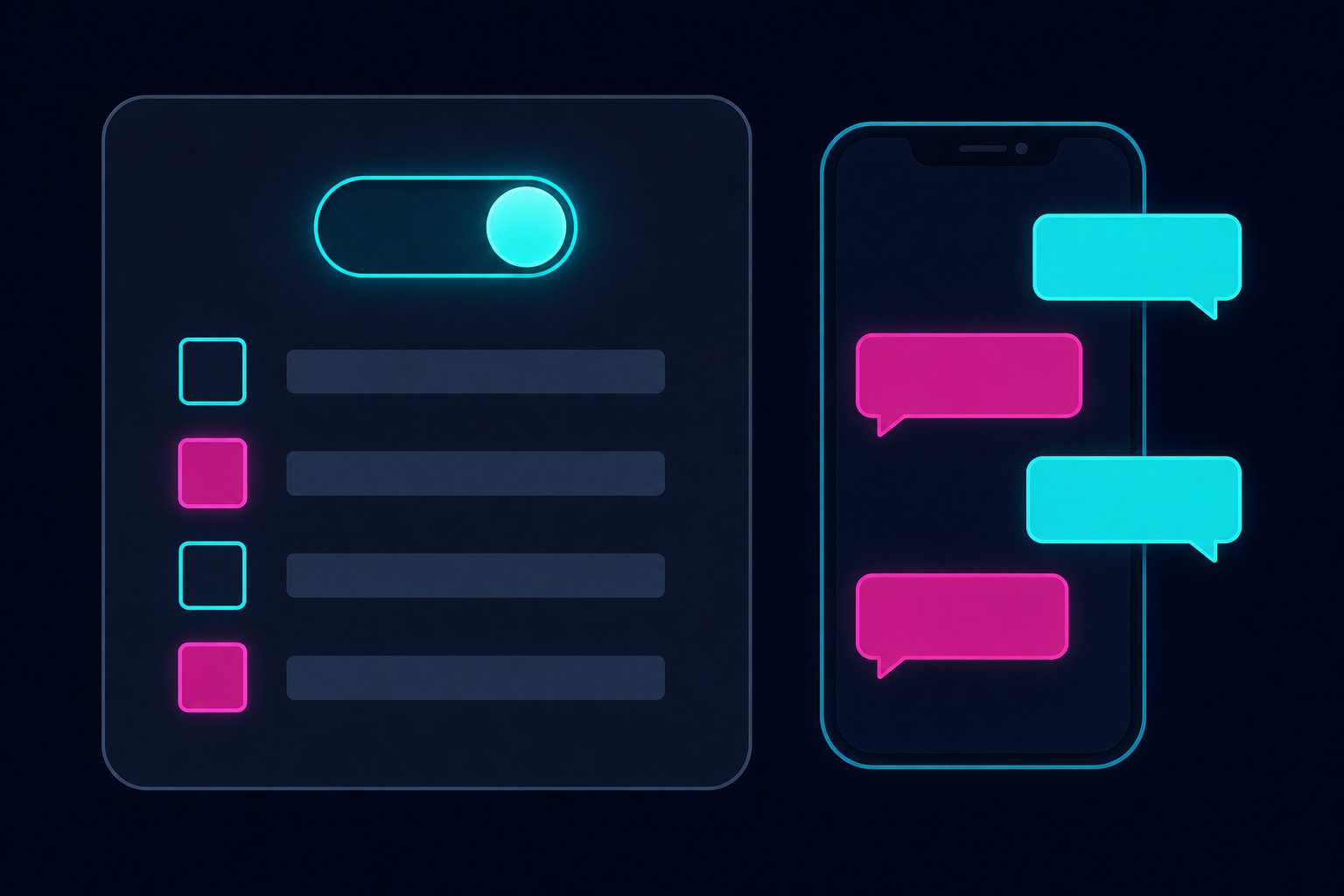
The logic is simple but powerful. The system won't create the contact in the CRM until the chatbot has collected all the fields you marked as required. No more incomplete contacts, no more manual cleanups every week. In this tutorial I'll walk you through exactly how to configure it, what to validate in production, and how to structure your bot flow so it does the dirty work before touching your CRM.
Requirements Before You Start
- An active SendPulse account with access to the Chatbots module and the integrated CRM.
- A WhatsApp chatbot already connected (via a WhatsApp Business API number in SendPulse).
- Chatbot variables defined for the data you want to capture (name, email, phone, funnel stage, etc.).
- Admin permissions on the SendPulse account to modify chatbot settings.
If you haven't defined variables in your bot yet, go to Chatbots > your bot > Variables and create them before continuing. Without variables, there are no fields to map to the CRM.
Step 1: Enable Automatic Transfer to CRM
- Log into your SendPulse account and go to Chatbots.
- Select the WhatsApp chatbot you want to configure.
- Open Chatbot Settings (gear icon or side menu depending on your version).
- Find the "Automatically transfer contacts to CRM" toggle and enable it.
Once enabled, the required fields section will appear. This is where the magic happens.
Step 2: Select the Required Fields
With the toggle active, SendPulse will show you the list of available fields to map. These fields correspond to the variables your bot can collect during the conversation.
Mark as required only the fields without which the contact has no real value to your team. A practical guideline:
- Always required: full name, WhatsApp number (comes automatically), lead source.
- Required depending on your business: email address, city, product of interest, funnel stage.
- Never required here: data you can enrich later (job title, company, anything you can get on a second touch).
Save the configuration. From this point on, SendPulse will only create the contact in the CRM once the bot has captured all the marked fields.
Step 3: Structure the Bot Flow to Collect the Fields
The bot needs to actively ask for those fields before reaching the transfer node. If you already have an existing flow, verify that each required field has its own question block and destination variable.
Example of a minimum flow in pseudocode (replicable in SendPulse's visual editor):
[Welcome]
  -> Question: "What is your full name?"
     -> Save to variable: {{name}}

  -> Question: "What is your email address?"
     -> Save to variable: {{email}}

  -> Question: "Which product are you interested in?"
     -> Options: [Product A] [Product B] [Product C]
     -> Save to variable: {{product_interest}}

  -> Node: Transfer to CRM
     (SendPulse validates here that {{name}}, {{email}}, and {{product_interest}} are filled)
     -> If all complete: create contact in CRM
     -> If any missing: do not create contact (bot can retry or escalate)
The transfer node in SendPulse is the "Add to CRM" block inside the flow editor. Drag it to the point in the flow where you're confident the user has already answered all the required questions.
Step 4: Map Bot Variables to CRM Fields
Inside the "Add to CRM" block, you'll see a mapping form. Here you connect each bot variable to the corresponding field in SendPulse's CRM.
| Bot Variable | SendPulse CRM Field |
|---|---|
{{name}} |
Name |
{{email}} |
|
{{product_interest}} |
Tag / Product |
{{city}} |
City |
If you're using an external CRM (HubSpot, Pipedrive, Zoho) via webhook or Zapier/Make, the principle is the same: the bot only fires the webhook when all required variables are present. You can add a logic condition before the send node:
// Example condition in Make (formerly Integromat) or a custom webhook handler
if (
  body.name &&
  body.email &&
  body.product_interest
) {
  // Send to external CRM
  await fetch('https://api.yourcrm.com/contacts', {
    method: 'POST',
    headers: { 'Content-Type': 'application/json', 'Authorization': `Bearer ${API_KEY}` },
    body: JSON.stringify({
      name: body.name,
      email: body.email,
      tag: body.product_interest
    })
  });
} else {
  // Log it, don't send
  console.warn('Incomplete contact, not transferred:', body);
}
Step 5: Test in Sandbox Before Going to Production
Never activate this directly in production without testing it first. SendPulse has a test mode in the chatbot editor. Simulate conversations with different scenarios:
- User answers all fields: contact should be created in CRM.
- User drops off halfway: no contact should be created.
- User sends an empty message or a period: verify that the variable doesn't get saved with garbage data.
Check the CRM after each test and confirm the data arrived clean.
Production Warnings Nobody Tells You
Don't mark email as required if your audience has low digital literacy. In markets where the typical user doesn't have an email or can't remember it, blocking the transfer over a missing email will cost you real leads. Use email as optional and phone number as the primary identifier.
Watch out for re-engagement flows. If you run broadcast campaigns that reactivate existing users, those users may already be in the CRM. Verify that your logic doesn't duplicate contacts when they pass through the transfer node again. SendPulse detects duplicates by phone number, but if you change the primary identifier, you can generate duplicate entries.
Bot variables have a lifespan. If the user abandons the conversation and comes back days later, some variables may have been reset depending on your session configuration. Check the session expiration time in the bot settings and decide whether you want to persist variables across sessions or start fresh.
Monitor the "pending contacts" field. SendPulse keeps a record of contacts the bot tried to transfer but that didn't meet the required fields. Review it periodically: if the percentage of blocked contacts is high, a question in your flow is probably failing or the required field is too demanding for your audience.
Expected Result
With this configuration active, your CRM will only receive actionable contacts. Your sales team stops wasting time on incomplete records, your conversion rates per contact go up because data quality goes up, and the bot does the filtering before the human ever enters the picture. That's automation that actually helps, not decoration automation.