Twilio announced on November 12, 2026 in its changelog that Email Logs, the message-by-message view of what you send through Twilio Email and Twilio SendGrid, now filters by sender, sending IP, event and API key, and that it now searches for words inside the subject and the response from the server that received the email, in any order. The filters can be combined and work the same in the Twilio console, the SendGrid console and the Email Logs API. It sounds like a cosmetic UI improvement, but it isn't: it's the difference between "something is bouncing" and "the online store's key is bouncing against this domain from this IP."
What exactly was added
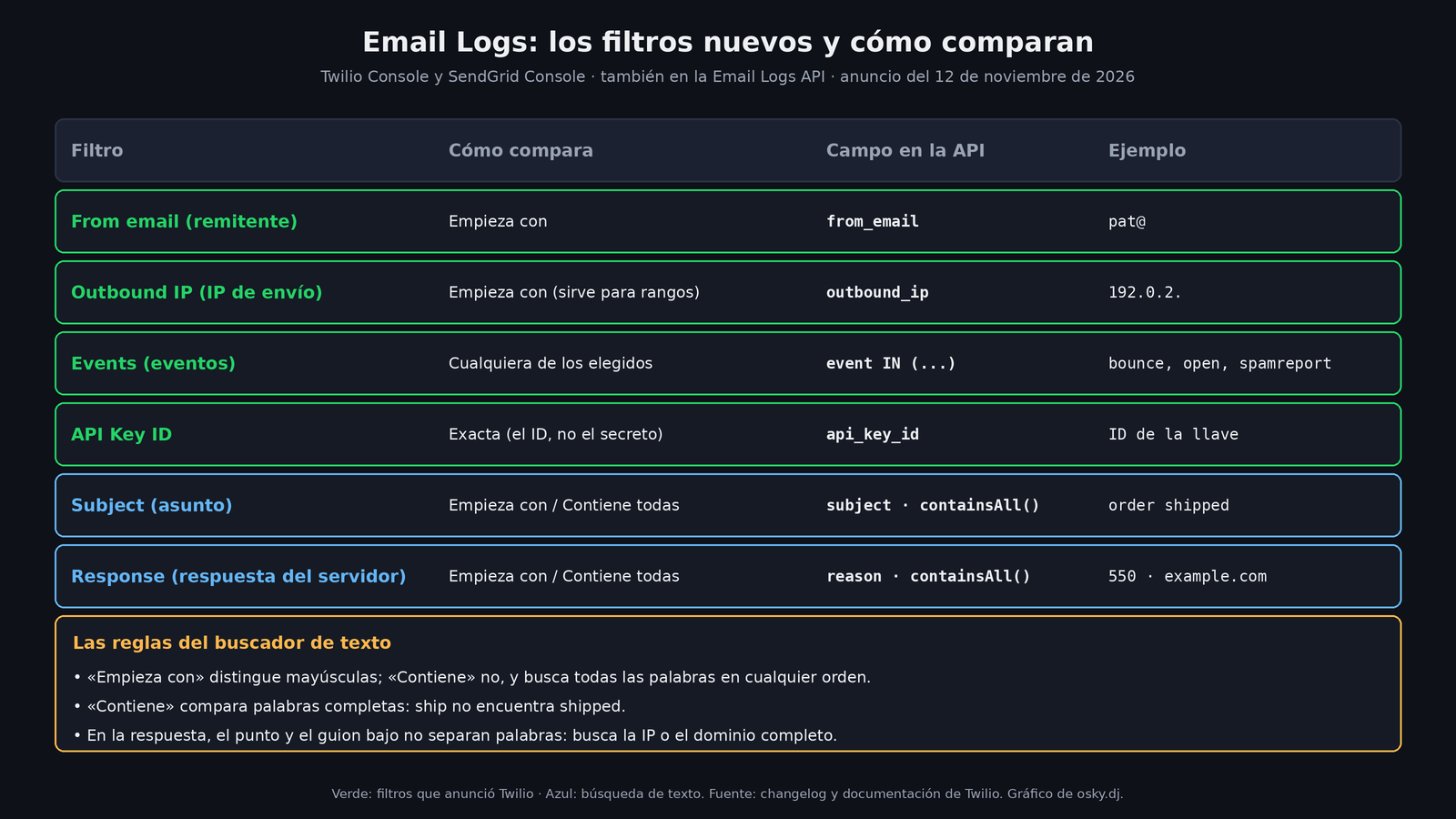
The announcement is short and to the point. According to Twilio, Email Logs now lets you filter messages by:
- Sender (From email): a full address or its beginning, for example
pat@. - Outbound IP: the Twilio SendGrid IP that sent the message. If you type only the beginning, like
192.0.2., it grabs the whole range. - Events: returns messages that logged any of the chosen events, from Processed, Deferred, Delivered, Bounce and Dropped to Open, Click, Spam Report and unsubscribes (Unsubscribe, Group Unsubscribe, Group Resubscribe).
- API Key ID: exact match on the ID of the key that sent the email. The SendGrid documentation insists on the detail: it's the ID, not the secret. Nobody should be pasting their key into a search box.
And text search: in Subject and Response you can choose between "starts with" and "contains." The changelog's own example sums up the idea well: set Status to Bounced, add an API key, and see which messages from a single integration bounced.
The fine print of the search box
This is where half the world is going to slip up, so it's worth reading the documentation carefully:
- "Starts with" is the default option and is case-sensitive:
Your orderfinds "Your order has shipped," but not "your order has shipped." - "Contains" looks for all the words you type, in any position and order, and is not case-sensitive.
- "Contains" matches whole words, not fragments:
shipdoes not find "shipped." If you search by word stem, you'll find nothing and you'll think there's no problem. - In the server response, spaces and almost all punctuation separate words, but the period and the underscore do not. An IP like
192.0.2.10or a domain likeexample.comcounts as a single word, so you have to search for them in full.
My take: that last rule is designed for whoever debugs deliverability, because rejection responses usually include the SMTP code, the domain and sometimes the blocked IP. Being able to search for "the response that mentions exactly this domain" without writing a regex is just what was needed.
In the API: same filter, different syntax
Twilio says the new filters and search "also work in the Email Logs API." According to the Filter All Messages reference, the query is sent with POST https://api.sendgrid.com/v3/logs (or api.eu.sendgrid.com for EU-region subusers) and a JSON body with a query field that looks like SQL:
from_emailandoutbound_ipaccept=andLIKE;api_key_id, only=.statusandeventonly acceptIN, even with a single value:status IN ('bounced').containsAll()is a function that only works onsubjectandreason(that's what the server response is called in the API):containsAll(reason, "mailbox full").LIKEis a prefix search, case-insensitive, and the pattern has to end in%with something before it.- You can chain up to 160 conditions with
AND, but nesting is not allowed.
Watch out for a detail the reference expressly flags: subject and reason split words differently. In the subject, anything that isn't a letter or number separates, so "5.2.2" becomes three words. In reason, the period and underscore don't separate, so "5.2.2" stays a single word. The same string behaves differently depending on the field.
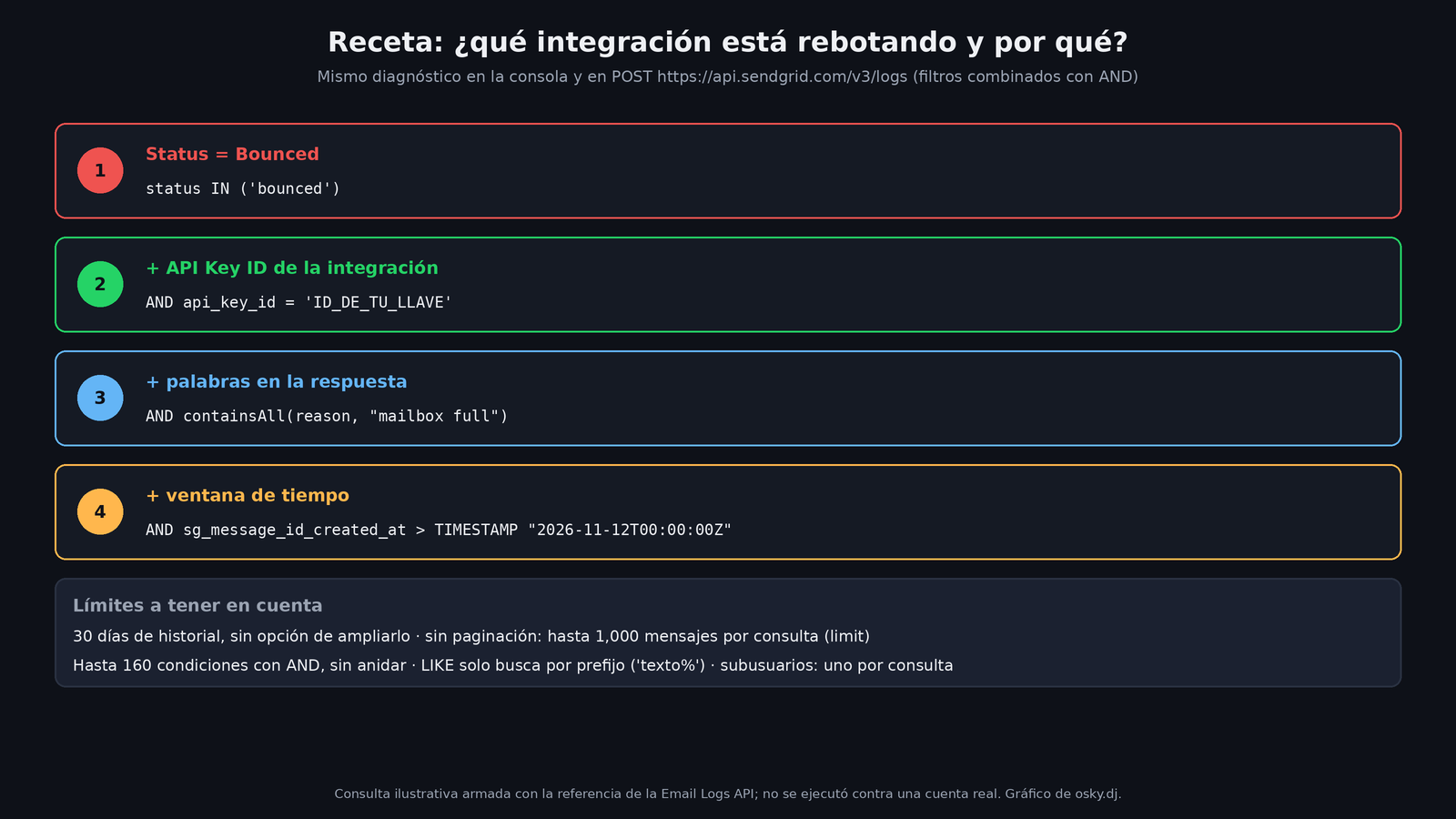
I didn't test it against a real account; the query in the image comes from the official Email Logs API documentation and is illustrative.
The limits that didn't change
The announcement adds filters, not history. The API reference still says all accounts have 30 days of events and that there is no way to extend that window. There's no pagination either: the limit parameter goes from 1 to 1,000 messages per query (10 by default). If the parent account queries a subuser, it passes it in subusers, one at a time. And for EU subaccounts, Twilio warns that logs stay in European infrastructure and that querying them from outside the region may count as global processing.
In short: Email Logs is for debugging recent stuff. If you need long history or auditing, the solution is still to store the events yourself with the Event Webhook.
Who this changes things for
- Anyone with several apps sending through the same account. If each system uses its own API key (and it should), you can now isolate each one's traffic without inventing categories or tags. If they all share one key, this is a good excuse to separate them.
- Anyone with dedicated IPs. The outbound IP filter, with a prefix for ranges, lets you see whether a problem belongs to one particular IP or to the whole send.
- Anyone doing support. Searching by words in the subject ("invoice," "reset password") and crossing it with the status quickly answers the classic "I didn't get the email."
- Anyone automating alerts. Since all of this is in the API, a script can periodically ask how many bounces from a key mention a certain domain and warn you before it turns into a crisis.
What this means, in my read: Twilio keeps filling the gap between the aggregate charts in Email Insights (from which, according to the documentation, a View Logs button opens the corresponding messages) and the detail of each message. For anyone running real transactional email, going from "I see bounces went up" to "it's this key, against this domain, with this response" in three filters is the improvement that saves the most time on a bad afternoon.